Session & Device Monitoring
Goal
Monitor active user sessions across your Keymate deployment, identify idle or suspicious sessions, and terminate sessions individually or in bulk. The Admin Console provides two complementary session management entry points: a realm-wide session monitor for cross-tenant visibility and a per-user session tab for managing individual user sessions.
Audience
Operators and platform engineers responsible for session lifecycle management, security incident response, and user access troubleshooting.
Prerequisites
- Access to the Keymate Admin Console
- Permissions on the Sessions resource (
READscope for viewing,DELETEscope for revocation and termination actions) - At least one tenant configured in the platform
The Admin Console uses permission-gated controls. If you do not see the Observability > Sessions sidebar entry or the revocation actions described in this guide, your account lacks the required scope on the Sessions resource. Contact your platform administrator to request the appropriate permissions.
Before You Start
The Admin Console provides session management through two complementary modules:
| Module | Entry Point | Scope |
|---|---|---|
| Realm-wide session monitor | Observability > Sessions | All active sessions across the entire realm |
| Per-user session tab | Identity > Users > (select user) > Sessions tab | Sessions belonging to a single user |
Both modules share the same underlying session data and termination capabilities, but they serve different workflows:
- Use realm-wide monitoring when you need to audit all active sessions, investigate cross-user patterns (such as sessions from an unexpected IP range), or perform a full logout across the platform.
- Use per-user sessions when you are troubleshooting a specific user's access or need to revoke a single user's sessions without affecting others.
Sessions in Keymate are classified into two types:
- Regular — standard browser sessions created during user authentication
- Offline — long-lived sessions backed by offline tokens (refresh tokens), typically used by service accounts or mobile applications that need to maintain access without continuous user interaction
Worked Example
Throughout this guide, we use the following scenario:
- Realm: Production
- User:
jane.doe(jane.doe@example.com) - Situation: An operator notices that
jane.doehas multiple active sessions from different IP addresses and needs to investigate and terminate stale sessions
Steps
1. Navigate to the realm-wide session list
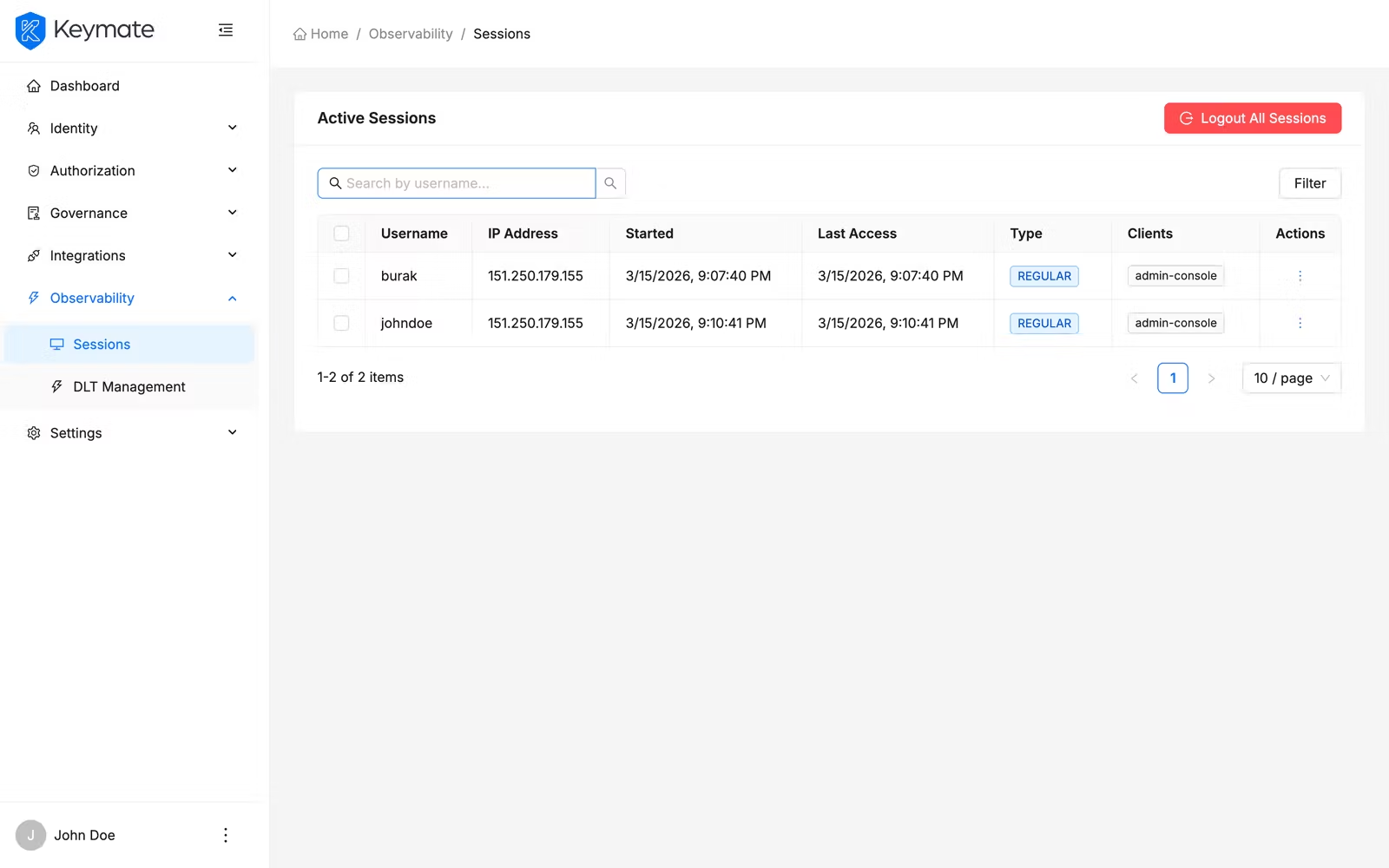
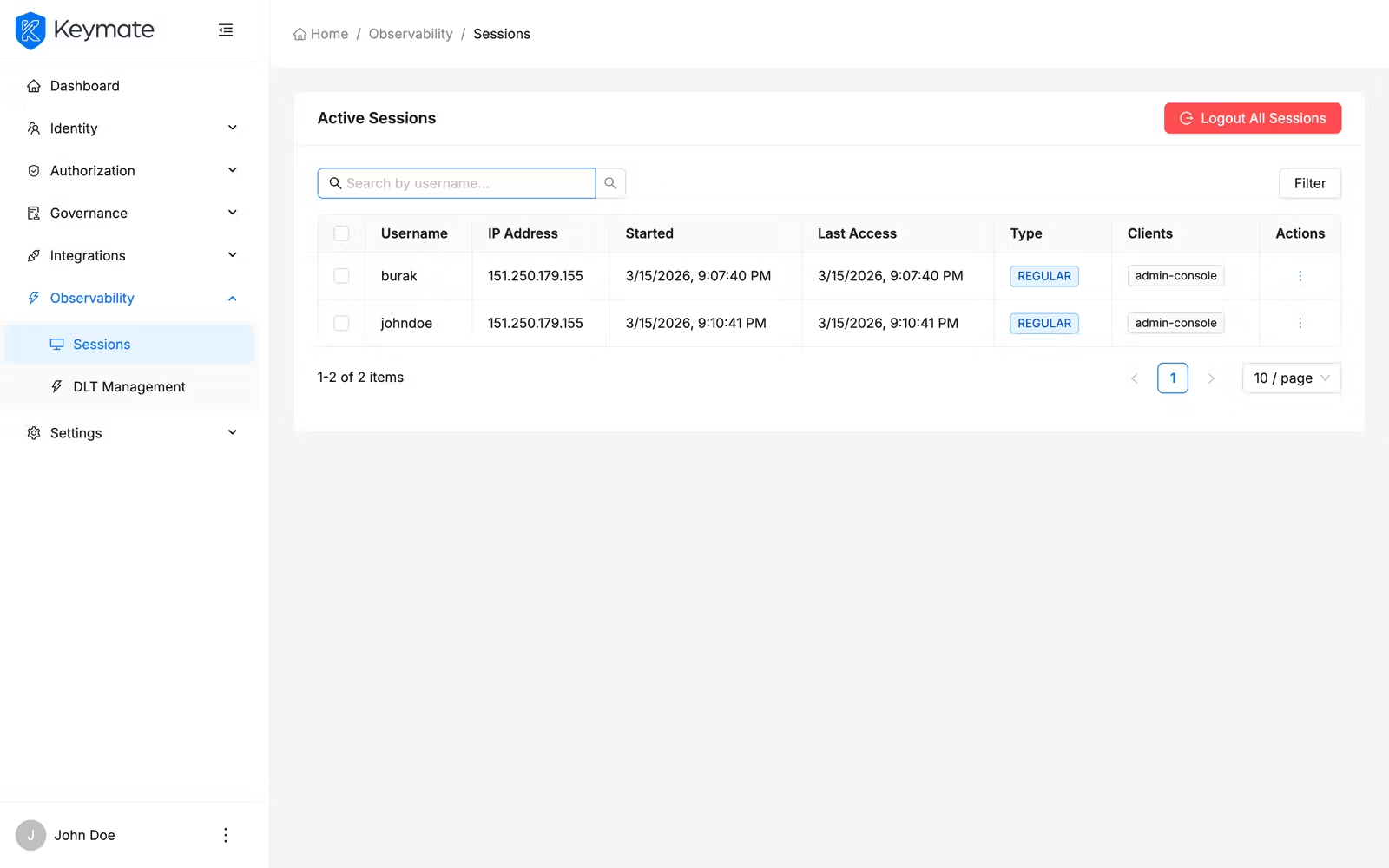
Navigate to Observability > Sessions in the sidebar. The session list displays a paginated table of all active sessions across the realm.
The table includes the following columns:
| Column | Description |
|---|---|
| Username | Clickable link to the user's detail page (if the user ID is available) |
| IP Address | The IP address from which the session originated |
| Started | Timestamp when the session was created |
| Last Access | Timestamp of the most recent activity within the session |
| Type | Visual tag — Regular (blue) or Offline (orange) |
| Clients | Tags showing the client applications connected through this session |
| Actions | Revoke Session button (visible only with DELETE permission) |
2. Filter sessions by type and client
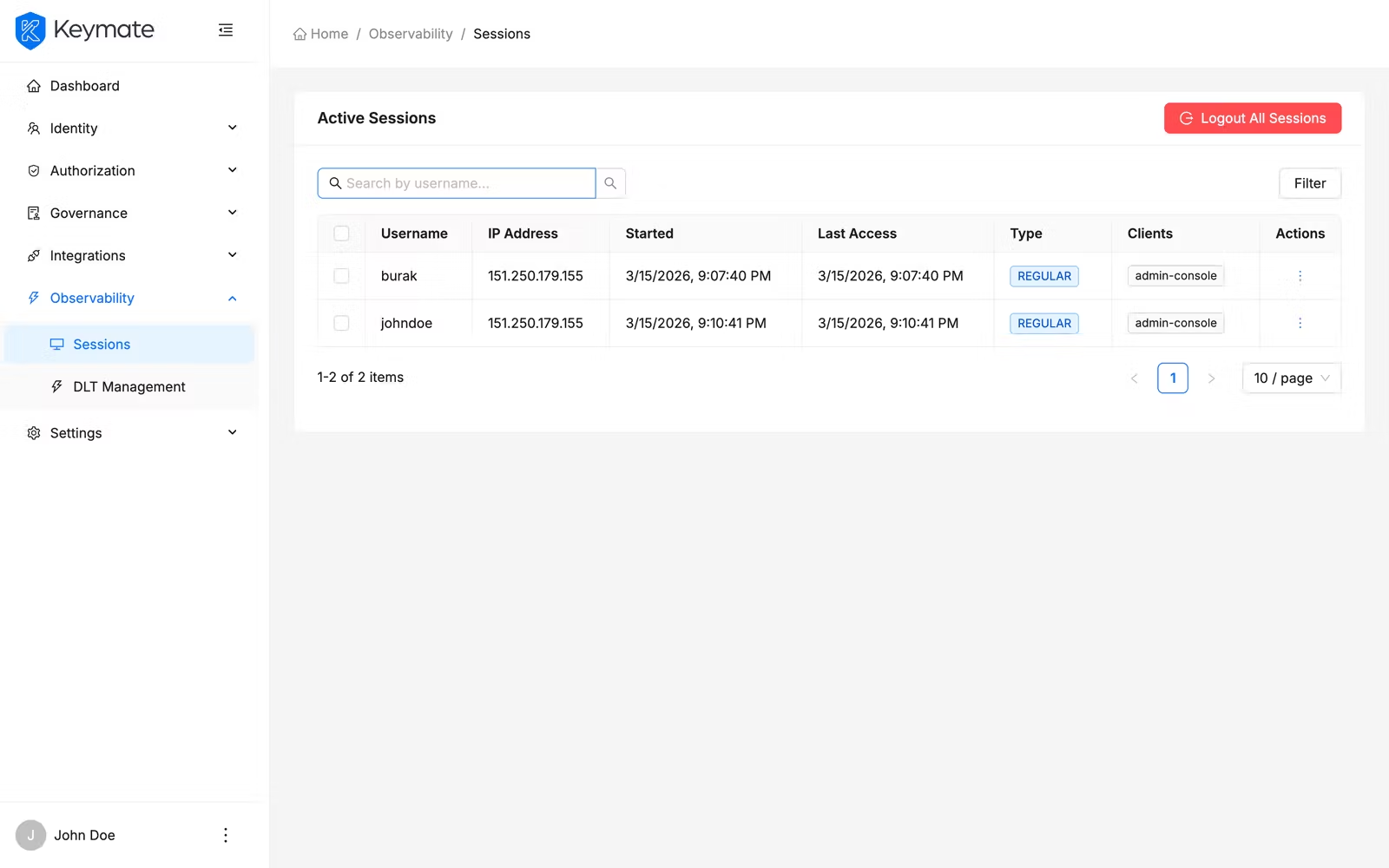
Use the filter controls above the session table to narrow the list:
- Search bar — free-text search to find sessions by username
- Type filter — dropdown to filter by session type: All (default), Regular, or Offline
- Client filter — searchable dropdown listing all client applications in the realm. Select a client to show only sessions connected through that application
Combine filters to isolate specific session patterns. For example, to find all offline sessions for a reporting service, select Offline from the type dropdown and choose the reporting client from the client filter.
3. Terminate a single session
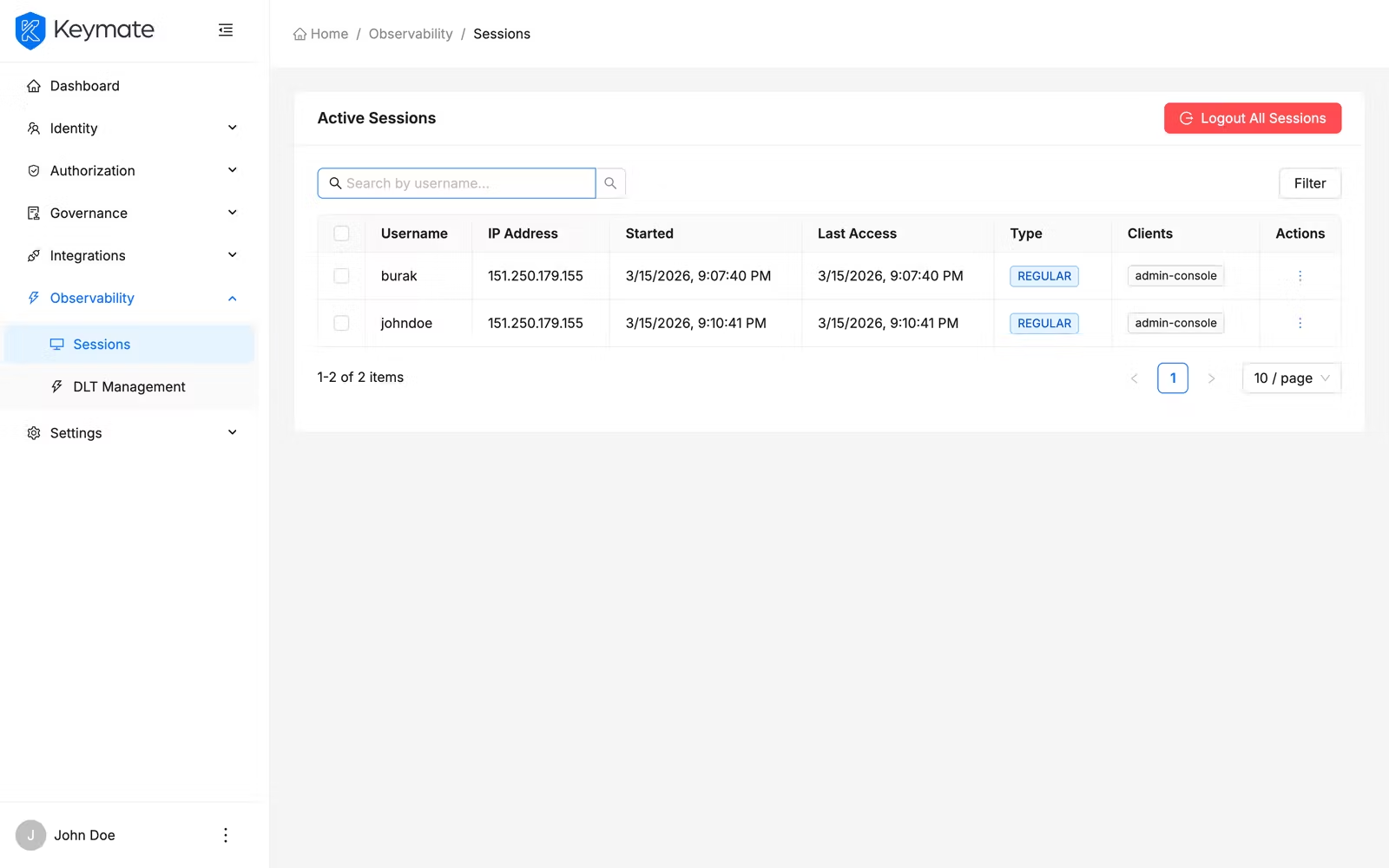
To terminate an individual session:
- Locate the target session in the session list using the search and filter controls.
- Click the Revoke Session button in the row's Actions column.
- A confirmation dialog appears showing the session's username and IP address.
- Click Revoke to terminate the session.
The session is revoked immediately and the user must re-authenticate to access the system through that session.
4. Bulk delete sessions
To terminate multiple sessions at once:
- Select the checkboxes next to each session you want to terminate.
- Click the Revoke Selected button in the bulk actions bar.
- A confirmation dialog shows the number of sessions selected for revocation.
- Click Revoke to execute the bulk revocation.
The system processes each revocation individually. When complete, a notification indicates how many sessions were revoked. If any revocations fail (for example, because the session expired between selection and execution), the notification includes both the success and failure counts.
5. Logout all sessions (realm-wide)
This is a destructive operation. Logging out all sessions terminates every active user session across the entire realm. All users must re-authenticate immediately. Use this action only during security incidents or planned maintenance windows.
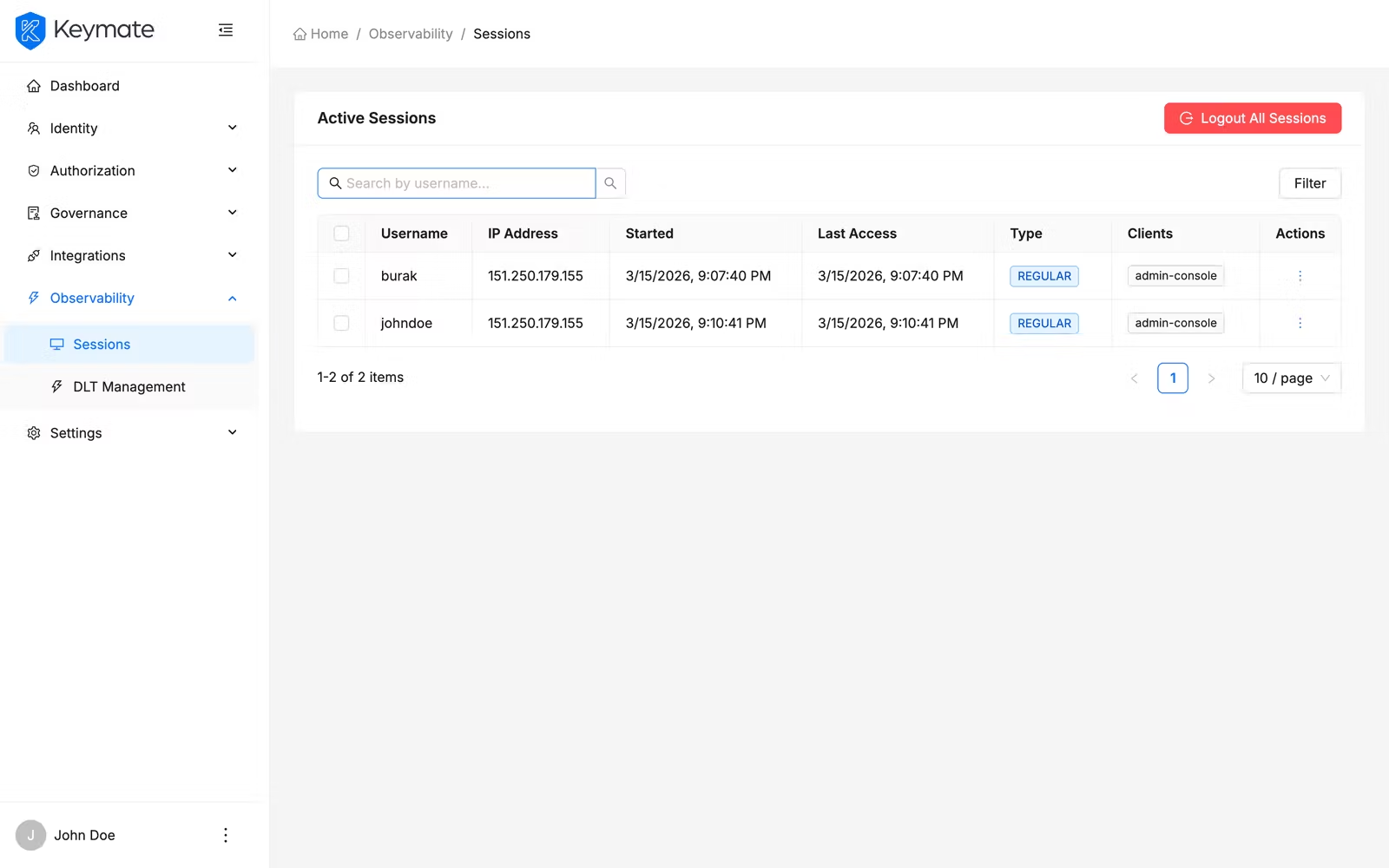
To terminate all sessions across the realm:
- Click the Logout All Sessions button (red) in the session list header area.
- A confirmation dialog appears with a strong warning that all active sessions in the realm will be terminated.
- Click Logout All to execute the realm-wide logout.
6. View sessions for a specific user
To monitor sessions belonging to a specific user:
- Navigate to Identity > Users and search for the target user.
- Click the username to open the user detail page.
- Switch to the Sessions tab.
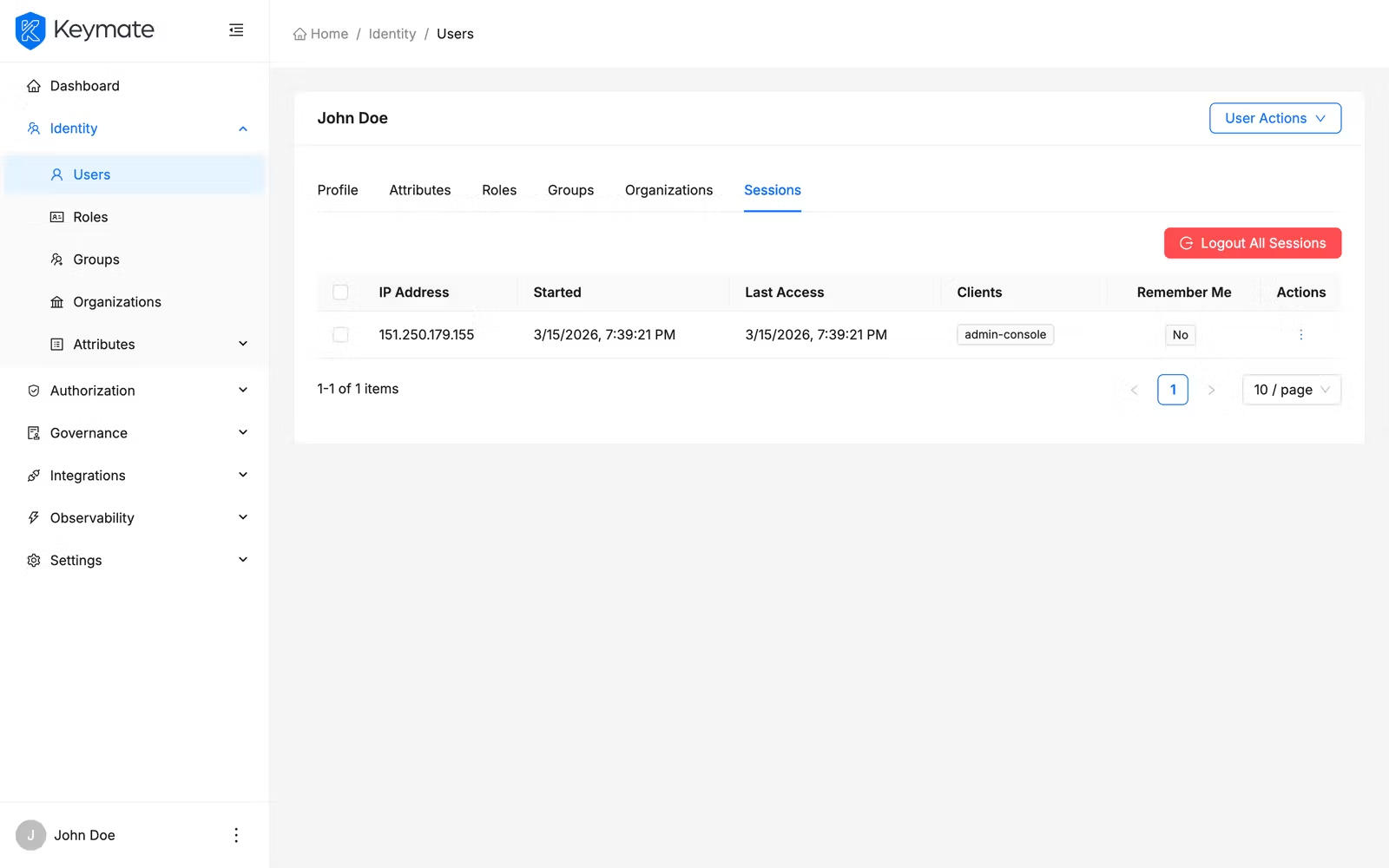
The per-user session table shows:
| Column | Description |
|---|---|
| IP Address | The IP address from which the session originated |
| Started | Timestamp when the session was created |
| Last Access | Timestamp of the most recent activity |
| Clients | Tags showing connected client applications |
| Remember Me | Green tag showing Yes if the user selected "remember me" during login, default tag showing No otherwise |
| Actions | Delete button for individual session termination |
Unlike the realm-wide session list, the per-user session tab does not include search, type, or client filters — it displays all sessions for the selected user.
7. Manage per-user sessions
From the user's Sessions tab, you can perform the following actions:
Terminate a single session — click the Delete button on the session row and confirm in the dialog.
Bulk terminate sessions — select multiple sessions using checkboxes, click Logout Selected in the bulk actions bar, and confirm by clicking Logout.
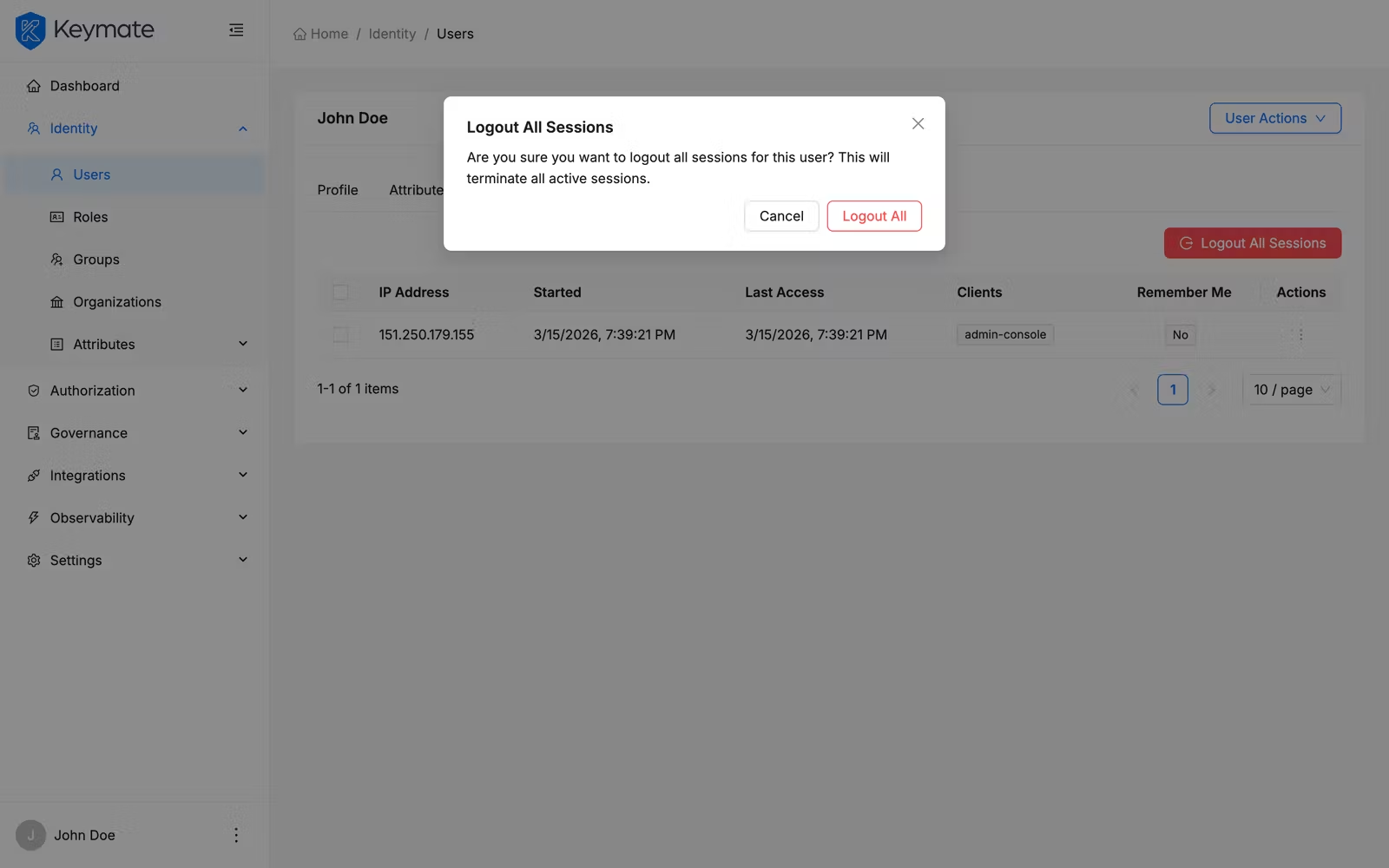
Logout all user sessions — click the Logout All Sessions button (red) to terminate all sessions for that specific user. A confirmation dialog appears before the action is executed. Click Logout All to confirm. This affects only the selected user, not other users in the realm.
Validation Scenario
Scenario
An operator identifies suspicious login activity for jane.doe and needs to terminate all sessions except the one originating from the corporate network IP range.
Expected Result
After termination, only the session from the corporate IP remains active. jane.doe must re-authenticate on all other devices and browsers.
How to Verify
- UI evidence: Navigate to Observability > Sessions, search for
jane.doe, and confirm that only the expected session remains. Alternatively, open the user detail page Sessions tab and verify the same. - API evidence: Query the user sessions endpoint to confirm that only the expected session remains active.
- Logs / traces: Check the Admin Console browser network tab for successful session deletion requests.
- Audit evidence: Verify the audit log captures session termination events with the session ID, user ID, and IP address of the terminated session.
Troubleshooting
- Sessions sidebar entry is not visible — Your account lacks the
READscope on theSESSIONSresource. Contact your platform administrator to request the Observability permissions. - Revoke Session button is not visible on session rows — Your account has
READpermission but lacks theDELETEscope on theSESSIONSresource. You can view sessions but cannot revoke them. - Bulk revoke shows partial failures — Some sessions may have expired naturally between the time you selected them and the time you confirmed the revocation. Refresh the session list to see the current state.
- Logout All Sessions does not appear — The Logout All Sessions button requires
DELETEpermission on theSESSIONSresource. If you haveREAD-only access, the button is hidden. - Sessions tab is empty on a user detail page — The user has no active sessions. This is normal for users who have not logged in recently or whose sessions have expired due to session governance policies.
- Offline sessions persist after logout — Offline tokens have their own lifecycle and may not be immediately revoked by a standard session logout. Use the Type filter set to Offline in the realm-wide session list to identify and explicitly delete offline sessions.
Next Steps
After monitoring and managing sessions, explore these related workflows:
- Alerts, Logs & Traces — monitor platform-level alerts and trace request flows
- User & Role Management — manage the users whose sessions you are monitoring
- Tenant Compliance & Risk — configure compliance policies that influence session governance
Related Docs
Session Governance
How Keymate creates, maintains, and terminates sessions
Logout Model
Global, selective, and event-driven logout mechanisms
User & Role Management
Manage user lifecycle and access the per-user sessions tab
Observability — Operations
Platform telemetry pipeline: log collection, metrics, distributed tracing, and OTel export.